Search
Currently, the Search page is still empty. Let's get it working.
How Search Works
The search follows the same extract-then-aggregate pattern as indices:
- The
extract-epidoc-metadatanode already extracts search fields, which go into the<search>section of the metadata XML - A new
aggregate-search-datapipeline node combines all search data into adocuments_en.jsonfile - The search page uses a client-side search component that loads the language-specific file and builds a full-text index in the browser
The scaffold already provides a working extract-search template in metadata-config.xsl with default fields (title, material, fullText), so the search data is already being extracted. We just need to enable the aggregation node and update the search page.
Step 1: Add the Aggregation Node
We're working with: Pipeline Configuration (pipeline.xml)
Uncomment the aggregate-search-data node in pipeline.xml:
<xsltTransform name="aggregate-search-data">
    <stylesheet>
        <files>source/stylesheets/lib/aggregate-search-data.xsl</files>
    </stylesheet>
    <initialTemplate>aggregate</initialTemplate>
    <stylesheetParams>
        <param name="metadata-files">
            <from node="extract-epidoc-metadata" output="transformed"/>
        </param>
        <param name="language">en</param>
    </stylesheetParams>
    <output to="_assembly/search-data" filename="documents_en.json"/>
</xsltTransform>
This works just like aggregate-indices: it uses <initialTemplate> to process all metadata files at once and produces a single output file.
Data flow
The same pattern we've seen throughout the tutorial:
- The
extract-searchtemplate inmetadata-config.xsloutputs<title>,<material>,<fullText>etc. for each document - These end up in the
<search>section of each metadata XML file (inspect them viaextract-epidoc-metadata's folder icon):xml<search> <title xml:lang="en">Seal of Manouel Mandromenos ...</title> <material xml:lang="en">Lead</material> <fullText xml:lang="en">Κύριε βοήθει τῷ σῷ δούλῳ Μανουὴλ ...</fullText> </search> aggregate-search-datareads all metadata files and selects the fields matching the requested language into adocuments_en.jsonarray- The search page loads
documents_en.jsonin the browser and builds a search index from it
Step 2: Update the Search Page
We're switching to: Website Templates (source/website/)
The scaffold already includes a search page at source/website/en/search/index.njk with the efes-search component set up which provides the user interface for the search feature. Open it and update the result-url on <efes-results> to point to your seals pages instead of inscriptions (you'll find it around line 40):
<efes-search data-url="{{ searchDataUrl | url }}" text-fields="fullText,title" match-mode="prefix">
	<!-- ... -->

	<!-- The template below is displayed for each search result -->
	{% set resultUrl = "/" + page.lang + "/seals/{documentId}/" %}
	<efes-results result-url="{{ resultUrl | url }}">

	<!-- ... -->
The {documentId} placeholder is replaced with each result's documentId field to create the link to the seal page for each result.
The search page wires up a handful of Web Components to provide the user interface: the sidebar holds the search input and filter facets, the main area shows the active filters, a result count, a sort dropdown, and the results list. See the Search guide for the full page structure and how the components fit together, and the efes-search reference for the complete component API.
Search Configuration
Three attributes on <efes-search> configure the component:
data-url: where to load the search data from (thedocuments_en.jsonour pipeline produces). Thepage.langvariable in the URL ensures the correct language file is loaded when multi-language support is addedtext-fields: which fields to index for full-text search (comma-separated). Here, searching matches againstfullText(the edition text) andtitlematch-mode: how search terms are matched:exact(whole words only),prefix(matches from the start of a word, e.g., "bar" finds "Bardas"), orsubstring(matches anywhere, e.g., "tospa" finds "protospatharios").
Note: Substring matching could get slow and memory-hungry for larger corpora.
How does the search component work?
The <efes-search> component is a set of Web Components that run entirely in the browser:
- On page load, it fetches the search data JSON
- It builds a FlexSearch full-text index from the fields specified in
text-fields - As the user types, it searches the index and filters results in real-time
- No server is needed; everything runs client-side
See It Work
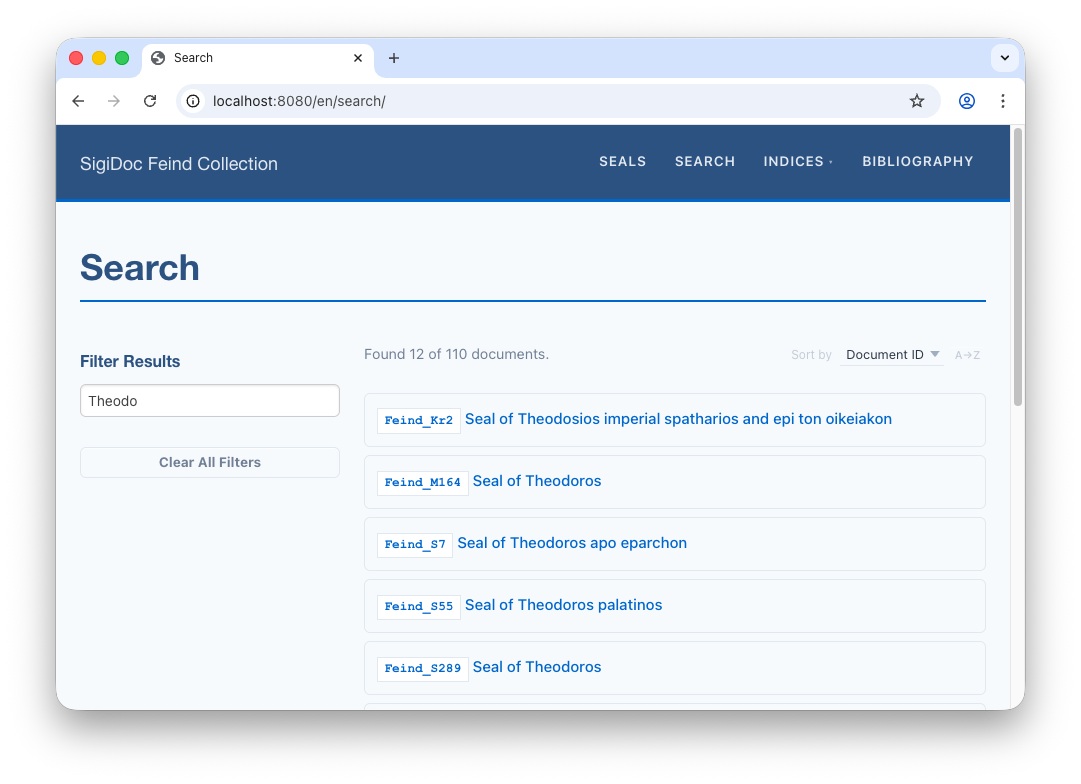
After rebuild, switch to the preview navigate to the Search page (🌎 /en/search). When you type a search term, results appear instantly, showing the title of matching seals with links to their pages.
Step 3: Customise Result Display
We're switching to: metadata extraction configuration (source/metadata-config.xsl)
The search results currently show only the title. Let's add the dating so readers can see when a seal is from. Open source/metadata-config.xsl and find the extract-search template. Uncomment the origDate line, and adapt it for SigiDoc encoding:
<xsl:template match="tei:TEI" mode="extract-search">
    <!-- ... -->

	<origDate><xsl:value-of select="string-join(//tei:origDate/tei:seg[@xml:lang='en'], ', ')"/></origDate>

	<!-- ... -->
</xsl:template>
After rebuilding, inspect the search data (click the folder icon next to aggregate-search-data). Each document in documents_en.json now includes the dating:
{
    "documentId": "Feind_Kr12",
    "title": "Seal of Manouel Mandromenos ...",
    "material": "Lead Blei Μόλυβδος",
    "origDate": "11th c., second half",
    "fullText": "Κύριε βοήθει τῷ σῷ δούλῳ Μανουὴλ ..."
}
To display origDate in the search results, open source/website/en/search/index.njk and find the commented-out <div class="efes-result-details"> block inside <template>.
We're switching to: Website Templates (source/website/)
Uncomment it:
<template>
    <a>
        <div class="efes-result-title">
            <span class="doc-id" data-field="documentId"></span>
            <span data-field="title"></span>
        </div>
        <div class="efes-result-details">
            <span data-field="origDate"></span>
            <span data-field="material"></span>
        </div>
    </a>
</template>
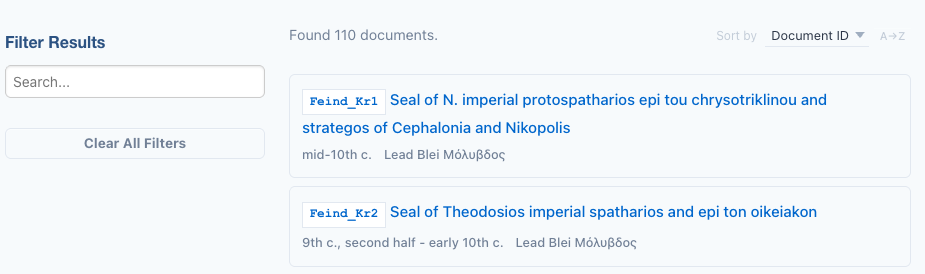
The entire result box is clickable. The efes-result-title row shows the document ID and title, and efes-result-details adds secondary information below in a smaller font. Each <span data-field="..."> maps to a field in the extracted search metadata through the search data JSON, and the search component fills in the values automatically.
When you reload the search page, the details will now appear for each result:
NOTE
You'll notice the material field which is included in the scaffold as an example detail. Since it is not useful for a collection consisting only of lead seals, you can remove it or comment it out in metadata-config.xsl as well as in the result template in source/website/en/search/index.njk.
Step 4: Add a Filter Facet
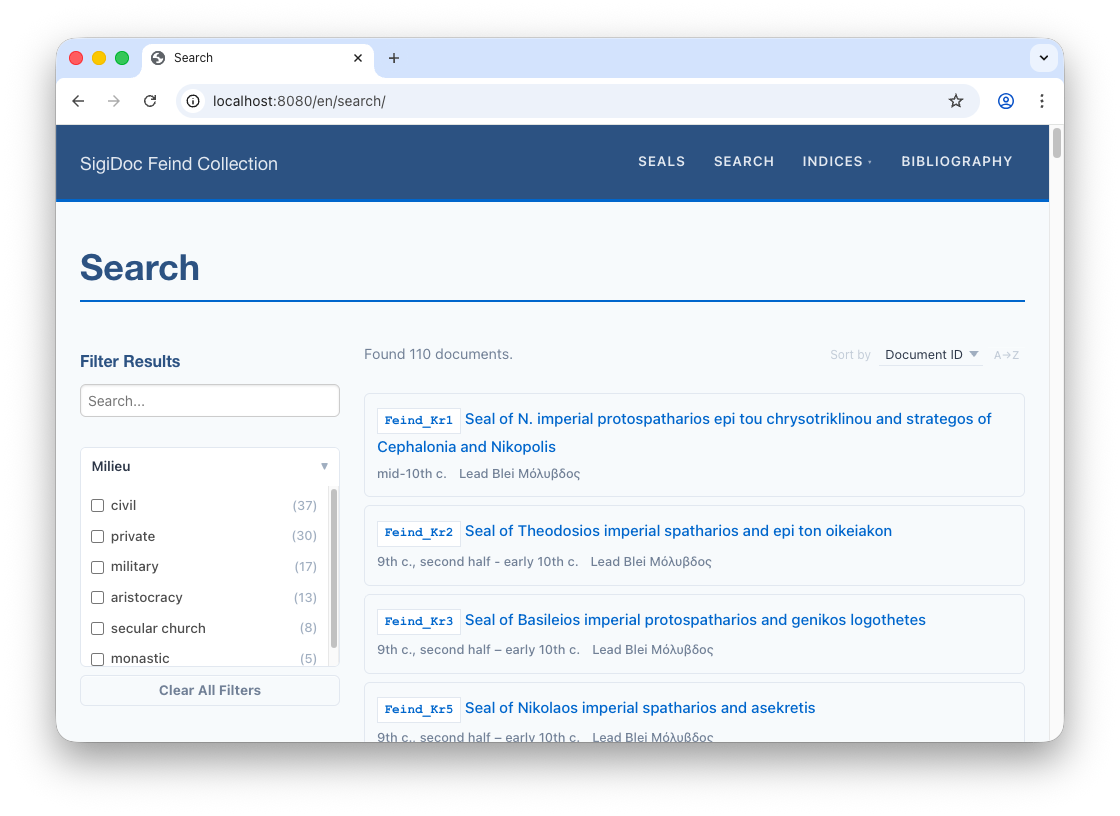
The scaffold includes a commented-out material facet, but since all the seals are lead, that's not very useful. Let's add a milieu facet instead, which shows the social context of each seal issuer (military, aristocracy, civil, etc.) and has a nice distribution of values.
First, add the milieu field to extract-search in metadata-config.xsl:
<xsl:template match="**tei:TEI**" mode="extract-search">
	<!-- ... -->

	<milieu>
	    <xsl:for-each select="//tei:listPerson[@type='issuer']/tei:person/@role">
	        <xsl:for-each select="tokenize(normalize-space(.), ' ')">
	            <item><xsl:value-of select="translate(., '-', ' ')"/></item>
	        </xsl:for-each>
	    </xsl:for-each>
	</milieu>
</xsl:template>
This is a multi-valued field: a seal can have multiple issuers with different roles, so each role becomes an <item>. The @role attribute can contain multiple space-separated values (e.g., "monastic secular-church"), so we tokenize by space first, then translate hyphens to spaces for cleaner display.
Then add the facet to the search page (source/website/en/search/index.njk):
<efes-search data-url="{{ searchDataUrl | url }}" text-fields="fullText,title" match-mode="prefix">
    <aside class="efes-facet-sidebar">
        <h2>Filter Results</h2>
        <efes-search-input placeholder="Search..."></efes-search-input>
		<!-- ... -->

		<efes-facet field="milieu" label="Milieu" expanded></efes-facet>

		<!-- ... -->
The field="milieu" must match the element name in extract-search. The search component reads the values from documents.json and renders them as a clickable list with counts. Clicking one filters the results. For example, clicking "military" shows only seals issued by military officials.
How do I add more facets?
To add a facet, you need two things: a field in extract-search (in metadata-config.xsl) and an <efes-facet> element on the search page.
For single-valued fields, the extraction is straightforward:
<objectType><xsl:value-of select="normalize-space(//tei:objectType)"/></objectType>For multi-valued fields (like our milieu example), use <item> children. The search component automatically treats these as multi-select facets.
The full SigiDoc example project project includes facets for object type, language, personal names, place names, dignities, and offices. See its metadata-config.xsl for reference.
Switch to the preview: After the search page reloads, the Millieu facet appears in the sidebar.
Step 5: Add Sort Options
The scaffold provides two default sort fields (Document ID through the sortKey field and Title) defined in source/website/en/search/index.njk.
<efes-sort>
	<field key="sortKey">ID</field>
	<field key="title">Title</field>
</efes-sort>
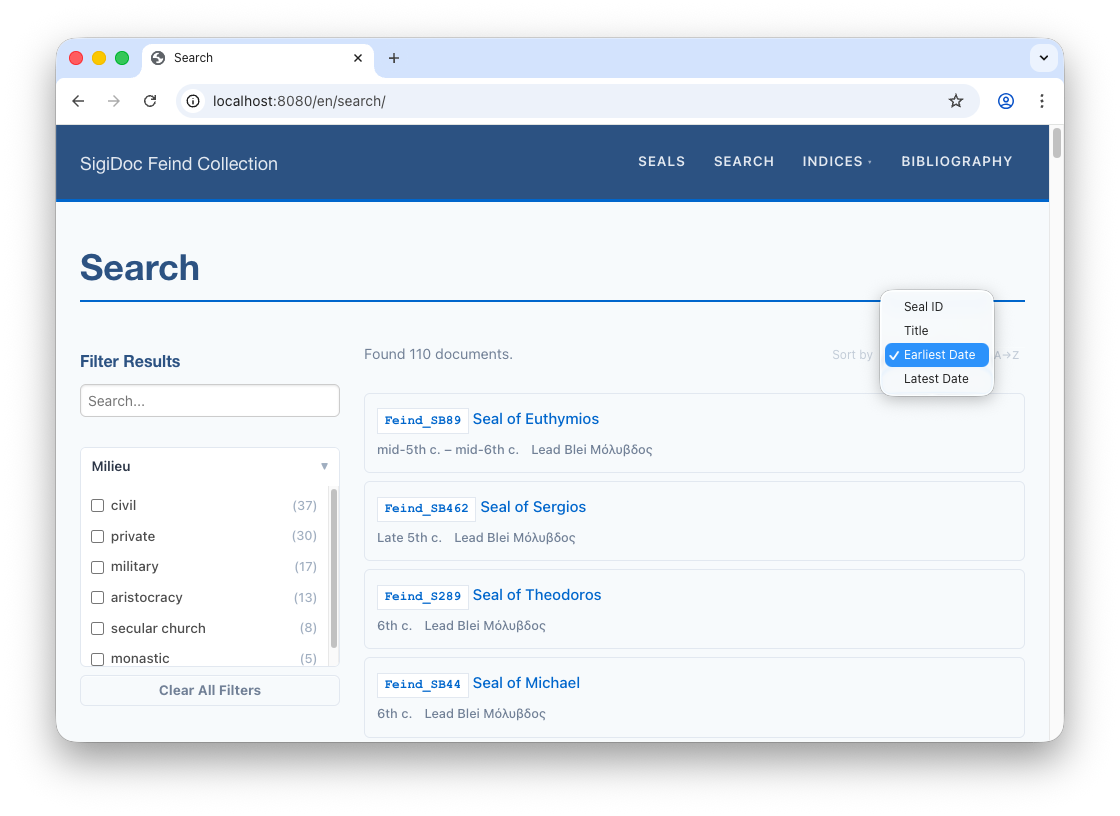
Let's add sorting by date. Add dateNotBefore and dateNotAfter to extract-search in metadata-config.xsl:
<xsl:template match="tei:TEI" mode="extract-search">
	<!-- ... -->

	<dateNotBefore><xsl:value-of select="//tei:origDate/@notBefore"/></dateNotBefore>
	<dateNotAfter><xsl:value-of select="//tei:origDate/@notAfter"/></dateNotAfter>

	<!-- ... -->
</xsl:template>
Then add the sort fields to <efes-sort> in the search page (source/website/en/search/index.njk):
<efes-sort>
    <field key="sortKey">Seal ID</field>
    <field key="dateNotBefore" numeric>Earliest Date</field>
    <field key="dateNotAfter" numeric>Latest Date</field>
    <field key="title">Title</field>
</efes-sort>
The numeric attribute tells the sort component to compare values as numbers rather than alphabetically. Readers can toggle between ascending and descending order with the direction button next to the dropdown. Note that we also changed the label of the ID sort option to Seal ID.
When the search page reloads, the new search options can be used from the dropdown menu:
Sorting Mixed Alphanumeric Identifiers
If your document IDs mix letters and numbers (like Feind_Kr1, Feind_Kr2, ... Feind_Kr12), alphabetical sorting will put Feind_Kr10 before Feind_Kr2. The scaffold already handles this: at the top of metadata-config.xsl, a $sortKey variable zero-pads the trailing number:
<xsl:variable name="sortKey" select="
    replace($filename, '\d+$', '')
    || format-number(xs:integer(replace($filename, '^\D+', '')), '00000')
"/>
This turns Feind_Kr12 into Feind_Kr00012, so alphabetical sort gives the expected order. Both extract-metadata and extract-search output it as <sortKey>:
<sortKey><xsl:value-of select="$sortKey"/></sortKey>In the search page, the default sort already uses sortKey:
<field key="sortKey">Seal ID</field>The dropdown label says "Seal ID", but the sort uses the zero-padded value behind the scenes. The documentId displayed in each result is unaffected.
What We've Built So Far
The aggregate-search-data node (highlighted in blue) completes the pipeline. All three consumers of the extracted metadata are now in place: sidecar data files, index aggregation, and search data.
This is the complete pipeline for a single-language edition. Next, we'll look at adding multi-language support: Multi-Language Support →