Creating a Project
The fastest way to start a new project is with the built-in project generator, which creates a new projects from the included scaffold.
In the desktop application, click New in the toolbar. The assistants will ask you to provide some information about your project.
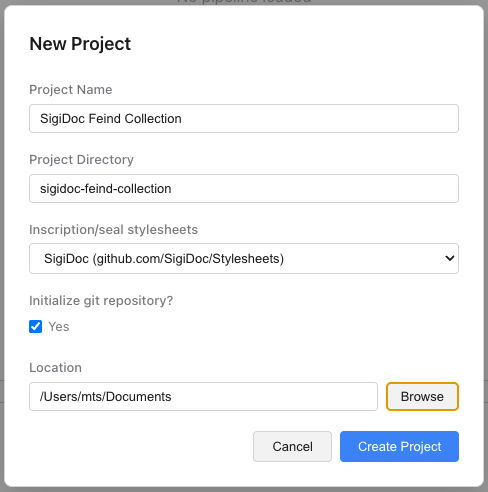
To create your new project:
- Enter a name for your project, for example "SigiDoc Feind Collection"
- Enter a folder name for your project. The assistant will automatically suggest one based on the project name, e.g. "sigidoc-feind-collection".
- Choose SigiDoc from the stylesheets dropdown
- Leave Initialize git repository checked.
- Choose a folder where your project will be saved
Then click Create Project. The app will generate the project and open it automatically. The SigiDoc stylesheet will be automatically added to your project as a git submodule.
Command-line alternative
You can also create a project from the terminal:
npx create-efes-ng my-sigidoc-projectWhat Just Happened?
The generator scaffolded a project directory with this structure:
my-sigidoc-project/
├── efes-ng.rng                     # Pipeline XML Validation schema
├── my-sigidoc-project.xpr          # Pre-configured Oxygen project
├── pipeline.xml                    # Pipeline definition
├── source/
│   ├── stylesheets/
│   │   ├── sigidoc/                # SigiDoc stylesheets (cloned)
│   │   ├── lib/                    # Framework-provided XSLT
│   │   │   ├── epidoc-to-html.xsl
│   │   │   ├── extract-metadata.xsl
│   │   │   ├── create-11ty-data.xsl
│   │   │   ├── aggregate-indices.xsl
│   │   │   ├── aggregate-search-data.xsl
│   │   │   └── prune-to-language.xsl
│   │   └── overrides.xsl            # Your project-level EpiDoc overrides
│   ├── authority/                   # Controlled vocabularies (empty)
│   ├── translations/                # UI label translations for EpiDoc/SigiDoc stylesheets
│   │   └── messages_en.xml
│   ├── website/                     # Website templates & assets
│   │   ├── _data/                   # Shared data to use in Eleventy templates
│   │   ├── _includes/
│   │   │   ├── layouts/
│   │   │   │   ├── base.njk        # Root HTML layout
│   │   │   │   └── document.njk    # Document page layout
│   │   │   ├── header.njk          # Header for all pages
│   │   │   └── footer.njk          # Footer for all pages
│   │   ├── assets/
│   │   │   ├── css/                # CSS Stylesheets
│   │   │   │   ├── base.css
│   │   │   │   ├── epidoc.css      # Stylesheets for EpiDoc/SigiDoc HTML output
│   │   │   │   └── project.css     # Your custom project styles
│   │   │   ├── fonts/              # Self-hosted web fonts
│   │   │   └── vendor/             # Third-party libraries (Foundation, jQuery)
│   │   ├── en/
│   │   │   └── index.njk           # Homepage
│   │   └── eleventy.config.js      # Static site generator config
│   └── metadata-config.xsl         # Index & search configuration
What are all these files?
pipeline.xml: defines the processing steps that transform your XML into a website (more on this shortly)source/stylesheets/sigidoc/: the upstream SigiDoc XSLT stylesheets, cloned from the official repositorysource/stylesheets/lib/: Framework-provided stylesheets for use in typical projectssource/stylesheets/overrides.xsl: a place for your project-specific EpiDoc/SigiDoc XSLT overrides (when using the providedepidoc-to-html.xsl, empty by default)source/translations/: translation files for UI labels in the EpiDoc/SigiDoc XSLT output (e.g., "Material", "Type", "Dating")source/website/: the website template: HTML layouts, CSS, and the homepagesource/website/eleventy.config.js: configures the Eleventy static site generator (language detection, translation filter)source/metadata-config.xsl: configures which metadata fields to extract for indices and searchsource/authority/: will hold your controlled vocabulary XML files (geography, bibliography, etc.)
TIP
The project structure is flexible: you can organize your source files however you like. But we recommend following this structure, which is what the documentation and examples use. See Designing Sustainable projects for the rationale behind this structure.
First Build
Let's build the project to see what we have. Open the project folder in the EFES-NG Prototype desktop application and click Start.

The pipeline will run through its steps and generate the website. Once complete, click Preview to open it in your browser. Usually, the preview is served under the address http://localhost:8080.
You should see a generic site with a header, navigation, and footer, but if you navigate to Inscriptions, there is no content yet. That's expected: we haven't added any XML source documents. 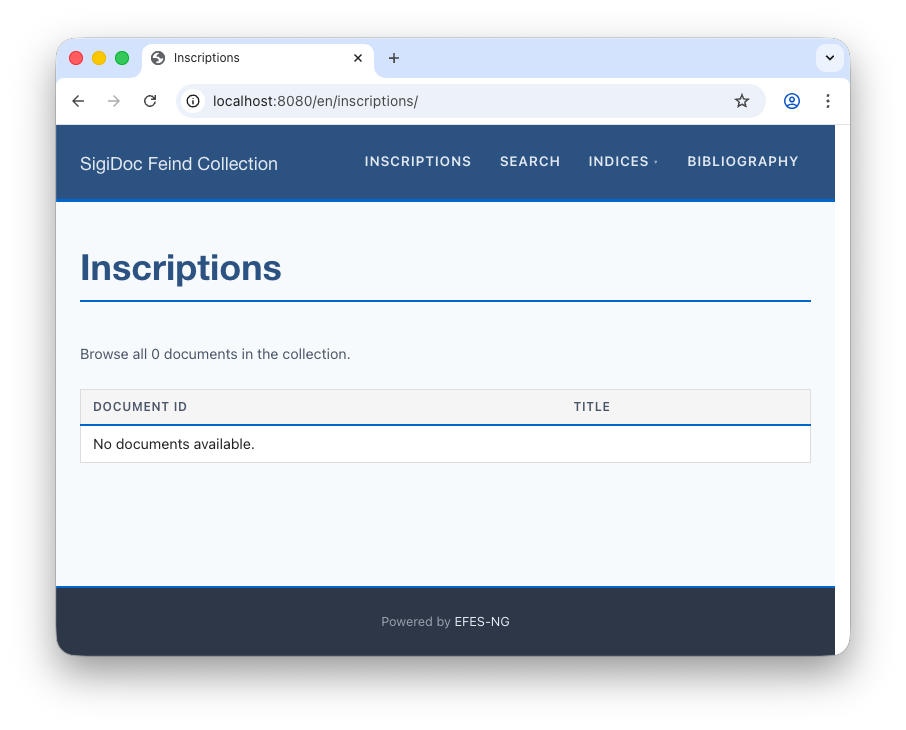
Next, let's understand what the pipeline is doing: Exploring the Project →