Customizing the Site
Before adding seal content, let's customise the generated website.
We're now working with: Website Templates (source/website/)
The files in this step are HTML and CSS with some Nunjucks template expressions. See Content and Templates for how the two worlds relate.
Changing the Site Title and Header
Open source/website/_includes/header.njk in the editor. You'll see the site title and navigation links. Change the title to your project's name:
<a href="/en/" class="site-title-link">
    <!-- Website Title -->
    <span class="site-title-full">SigiDoc Feind Collection</span>
</a>
Updating the Navigation
In the same file, you'll find the navigation menu. The generated template includes an "Inscriptions" link. Let's rename it to "Seals" (in the element's content) since that's what we'll be publishing, and point the link (href attribute) to /en/seals/ instead of inscriptions:
<!-- Navigation Menu -->
<nav class="site-nav">
    <!-- before --> <!-- -->
    <a href="<%- '/{{ page.lang }}/inscriptions/' %>" class="nav-link">Inscriptions</a> <!--[!code --] -->

    <!-- after --> <!-- -->
    <a href="<%- '/{{ page.lang }}/seals/' %>" class="nav-link">Seals</a> <!--[!code ++] -->
We changed where the link points, but the actual listing page still lives at source/website/en/inscriptions/. This index.njk template in that folder generates the index page, the browsable list of all documents in the collection. The website template's directory structure determines the URL on the final site, so we need to rename the folder to match. Rename source/website/en/inscriptions/ to source/website/en/seals/.
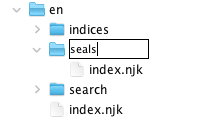
Then open the index.njk inside your renamed folder and update the title in the --- block at the top from "Inscriptions" to "Seals":
---
layout: layouts/base.njk
title: Inscriptions
title: Seals
---
Editing the Footer
Open source/website/_includes/footer.njk and update the footer text: add your institution name, a link to the project, or whatever you like.
Editing the Homepage
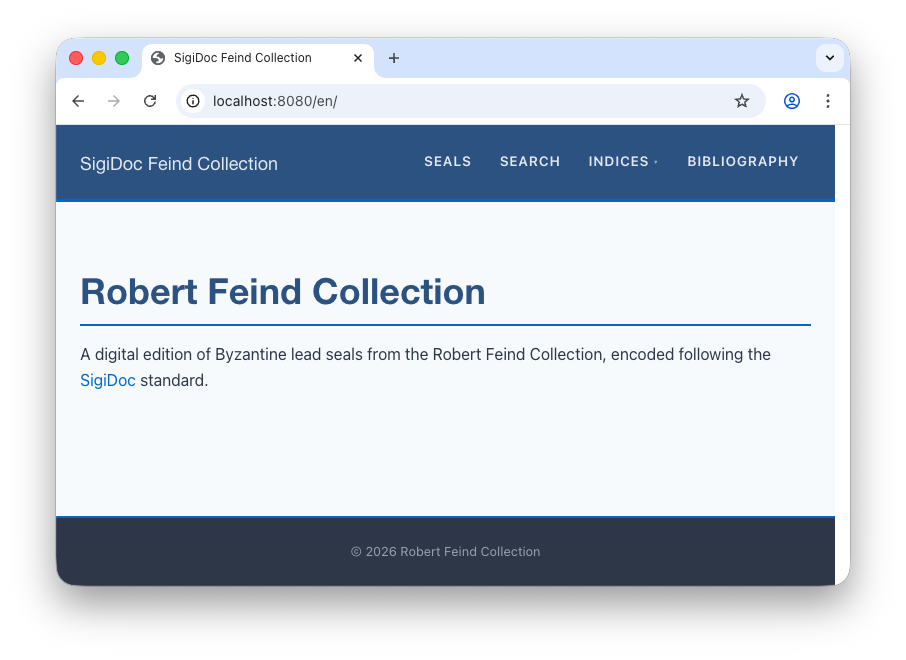
Open source/website/en/index.njk and replace the placeholder content with a description of your project:
---
layout: layouts/base.njk
title: Home
---

<h2>Robert Feind Collection</h2>
<p>
  A digital edition of Byzantine lead seals from the Robert Feind Collection,
  encoded following the <a href="https://github.com/SigiDoc">SigiDoc</a> standard.
</p>
See Your Changes
If the pipeline hasn't started yet, click Start in the GUI (or run efes-ng run on the command line), then open the preview. You should see your updated title, navigation, and homepage.
Watch Mode
If you use Start in the GUI, the pipeline enters watch mode after the initial build. Any changes you save to template files will trigger an automatic rebuild. Just save and switch to the preview in your browser.
Customizing Colors
You may also want to adjust colors or fonts. The CSS is organized into three files in source/website/assets/css/:
| File | Purpose |
|---|---|
base.css | Layout, typography, navigation |
epidoc.css | Styles for rendered EpiDoc elements |
project.css | Your project-specific customizations |
Edit project.css to change colors, fonts, or spacing. It's loaded last, so it can override anything in the other files. For example, to change the header background color:
.site-header {
  background-color: #2c3e50;
}
What Did We Just Do?
Let's step back and look at the files we edited. You may have noticed they contain a mix of HTML and expressions like or {% include "header.njk" %}. These are templates written in a language called Nunjucks.
What is a template language?
A template language lets you mix static HTML with dynamic expressions. Instead of writing the same header and footer in every page, you write it once and reuse it.
Nunjucks uses for outputting values and {% %} for logic:
<title>{{ title }} – My Project</title>

{% if items.length > 0 %}
  <ul>
    {% for item in items %}
      <li>{{ item.name }}</li>
    {% endfor %}
  </ul>
{% endif %}
Eleventy processes these templates at build time, producing plain HTML files. The final website has no dependency on Nunjucks or Eleventy; it's just static HTML.
How the Template System Works
The templates are organized in layers:
base.njk          ← Root layout: <html>, <head>, CSS, scripts
  ├── header.njk  ← Site header with title and navigation
  ├── content     ← Page content goes here
  └── footer.njk  ← Site footer

document.njk      ← Extends base.njk, adds document-specific features
                     (prev/next navigation, metadata display)
base.njk is the root layout. It defines the HTML skeleton (<head>, CSS links, the overall page structure) and includes header.njk and footer.njk as reusable components. Every page on the site uses this layout (or a layout that extends it).
document.njk extends base.njk and adds features specific to document pages, like navigation between seals. When we add content in the next step, each seal page will use this layout automatically.
The --- block at the top of a template file is called front matter: metadata written in YAML that tells Eleventy which layout to use, what the page title is, and other settings:
---
layout: layouts/base.njk    # Which layout wraps this page
title: Home                  # Page title
---
Front matter values are available to templates as variables. For example, base.njk uses title in two places: in the HTML <title> tag (what appears in the browser tab):
<title>{{ title | default('My Collection') }}</title>and as a heading on the page itself:
<h1>{{ title }}</h1>That's why we changed the title to "Seals" earlier: it controls both the browser tab text and the page heading.
How Files Become Pages
You might be wondering: how did en/index.njk end up as the homepage? The answer is straightforward: the file's path inside source/website/ determines its URL on the final site.
Remember that the copy-eleventy-site node copies everything from source/website/ into _assembly/, stripping the source/website/ prefix. Then Eleventy turns each file in _assembly/ into a page, preserving the directory structure:
File in source/website/ | Copied to _assembly/ | URL on the site |
|---|---|---|
📄 en/index.njk | en/index.njk | 🌎 / |
📄 en/seals/index.njk | en/seals/index.njk | 🌎 /en/seals/ |
📄 bibliography/index.njk | bibliography/index.njk | 🌎 /bibliography/ |
The same principle applies to content generated by the pipeline. When a later step writes a transformed seal to 📄 _assembly/en/seals/Feind_Kr1.html, Eleventy turns it into the page at 🌎 /en/seals/Feind_Kr1/.
In short: directory structure = URL structure. If you want a page at 🌎 /about/, create 📄 source/website/about/index.njk (or 📄 source/website/about.njk).
Now let's add actual content. Adding Content →